

Connecting Your Accounting System

Aug 27, 2026
9511

Connecting your accounting system helps keep your credit limit up to date and reduces the need to share financial documents manually.
In this guide, you’ll learn how to connect your system and what to expect after.

Why connect your accounting system
When your accounting system is connected, we can:
- Access up-to-date financial data
- Review your credit limit more accurately
- Reduce back-and-forth for document requests
Supported providers
We currently support the following providers:
- Björn Lundén
- Dynamics 365 Business Central
- Fortnox
- FreeAgent
- Oracle NetSuite
- PE Accounting
- Power Office
- QuickBooks Desktop
- QuickBooks Online
- Sage 50 (UK)
- Sage 200cloud
- Sage Business Cloud Accounting
- Tripletex
- Visma eEkonomi
- Xero
- Zoho Books
How to connect your system
- Log in to the Treyd platform
- Go to Company (left-hand menu)
- Scroll to Financial information
- Click Update or Connect accounting
- Click Continue and select your provider
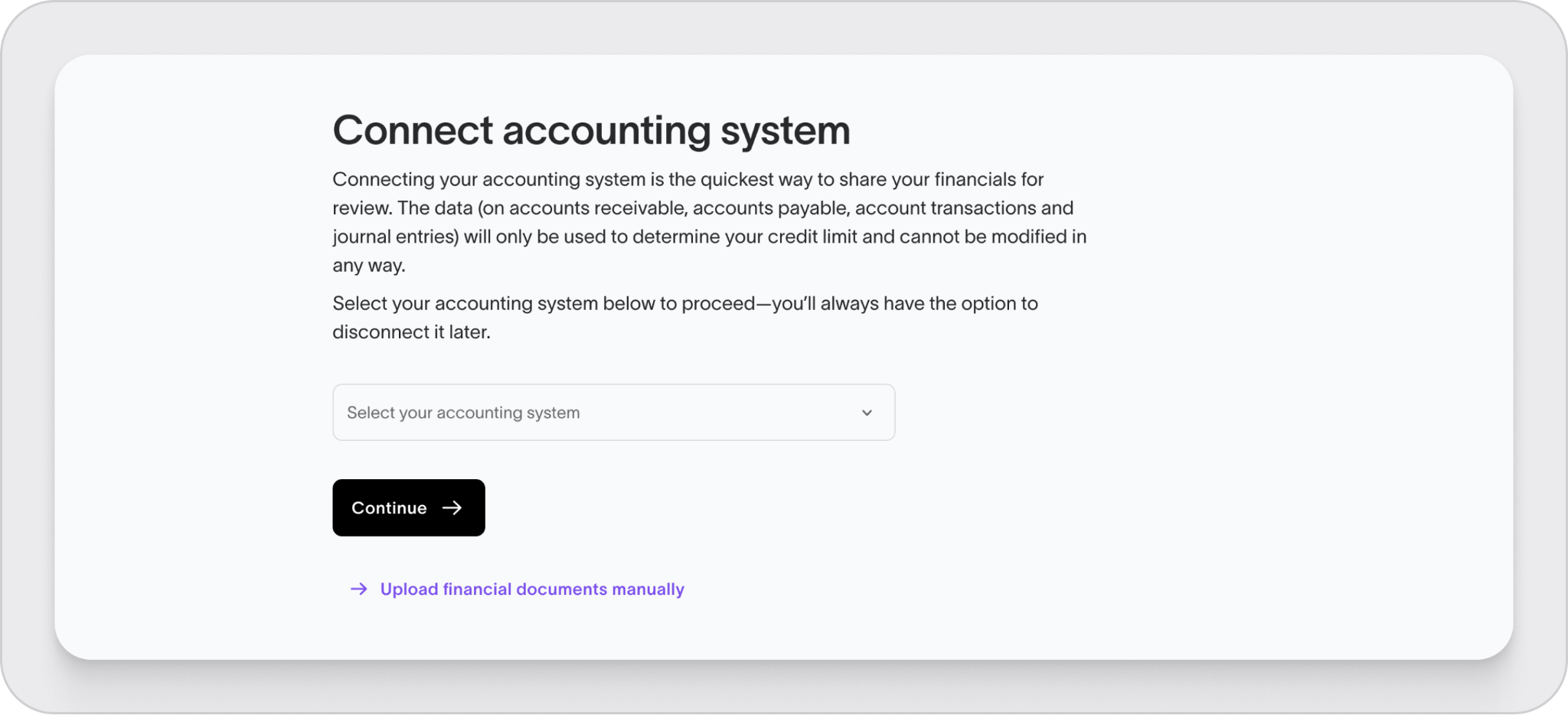
- Approve access and log in to your provider
Once completed, the connection will start automatically.
Special cases
If you’re using:
- Sage 50
- QuickBooks (certain versions)
You may need to install a connector before continuing.
What happens next
- The connection usually completes within a few hours
- Your financial data will update automatically
- If a credit review is needed, our team will assess it once data is available
In most cases, you’ll receive feedback within 24 hours.
You’re all set
Your accounting system is now connected, and your data will stay up to date moving forward.

