

Turning on SIE export in Fortnox
Last updated: Nov 11, 2026
16
views

If you use Fortnox, Treyd reads your bookkeeping through a standard Swedish file called an SIE file. Fortnox only shares this file when the user who connected Treyd has SIE export turned on.
Why turn on SIE export?
Many Fortnox accounts have SIE export switched off by default. When it's off:
- Your Fortnox connection to Treyd looks active
- Treyd can't read your financial data
- Your figures won't update on the platform
Turning it on takes about 2 minutes.
Before you start
Make sure you have:
- Administrator access in Fortnox (called Systemadministrator)
- The name of the Fortnox user who connected Treyd—usually the person who clicked Connect when linking Fortnox
How to turn on SIE export
-
Log in to fortnox.se
-
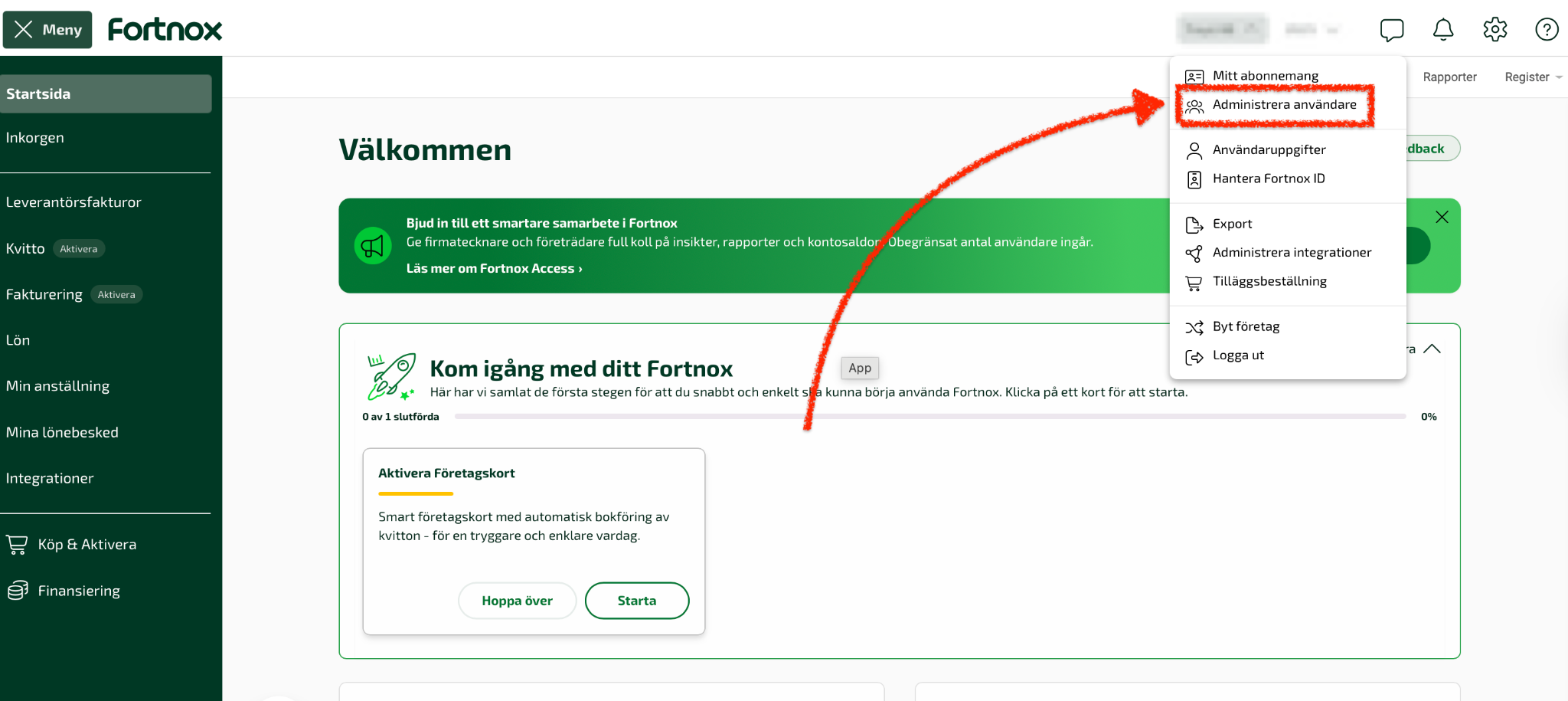
Click your company name in the top-right corner
-
Select Administrera användare (Manage users)
-
Click the user who connected Treyd
-
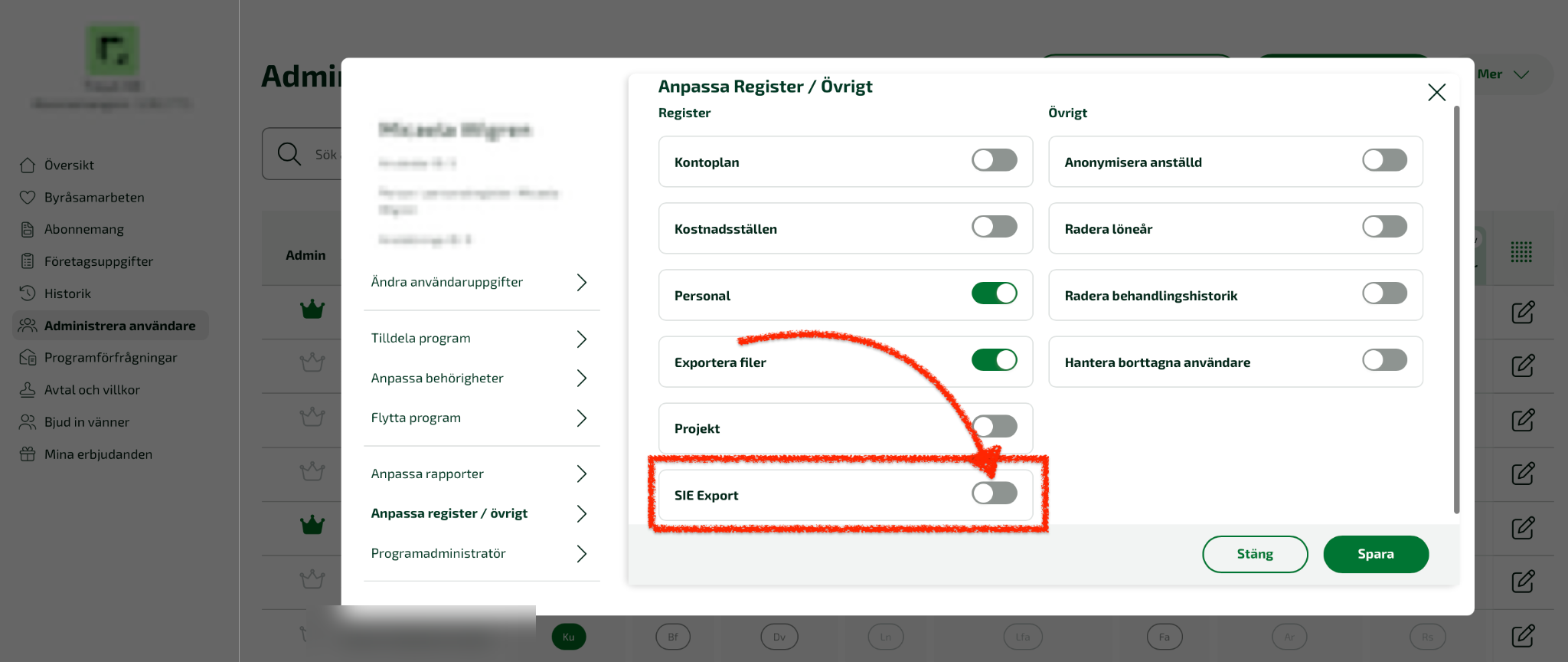
In the window that opens, click Anpassa Register/Övrigt (Customize Registers/Other) on the left
-
Find Sie-export and turn on the switch — it turns green
-
Click Spara (Save) in the bottom-right corner
-
Log out of Fortnox and log in again
What happens next
- Contact support to let us know SIE export is on
- We'll fetch your financial data again
- You don't need to reconnect Fortnox to Treyd
Important to know
- SIE export must be on for the specific user who connected Treyd
- Fortnox's own guide (in Swedish): Behörigheter Register/Övrigt

