

Connecting Your Bank Account

May 15, 2026
451

Connect your bank account to share transaction data securely with Treyd. This helps us assess your business faster and offer a more accurate credit limit.

Before you start
Make sure you have:
- Access to your company’s online banking
- Authorization to connect the account (e.g. signatory or admin rights)
- Make sure you’ve enabled ‘Open Banking’ through your bank
How to connect your bank account
- Log in to your Treyd account
- Go to the Company page
- Find the Financial information section
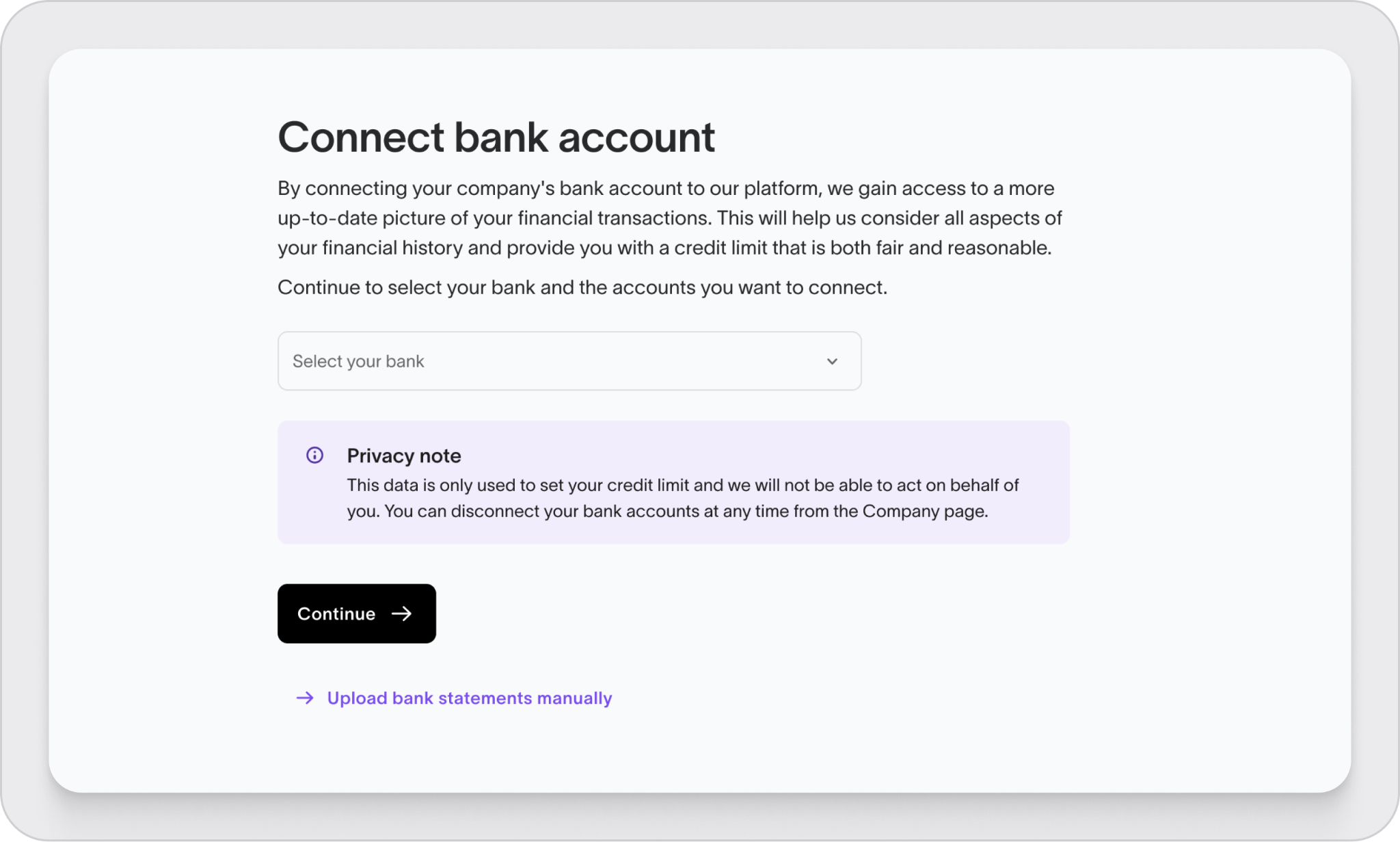
- Click Connect bank account
- Select your bank from the list
- Follow the steps in the secure window to log in and approve access
- Choose the account(s) you want to connect
- Confirm the connection
You’ll be redirected back to Treyd once it’s complete.
What happens next
- We’ll review your transaction data to assess your limit
- This can help speed up onboarding and improve your offer
- You’ll see the connection status in your Company settings
Important to know
- Treyd only gets read-only access to your transaction data
- We cannot move money or make payments from your account
- You can disconnect your bank account at any time from the Company page
- Your banking connection will automatically disconnect every 90 days
Need help?
If your bank isn’t listed or the connection fails, reach out to our support team—we’ll help you get set up.
You’re now ready to connect your bank account and move forward with your limit assessment.

