


Ready to place your first order? This guide walks you through each step in the order flow so you know exactly what to expect.
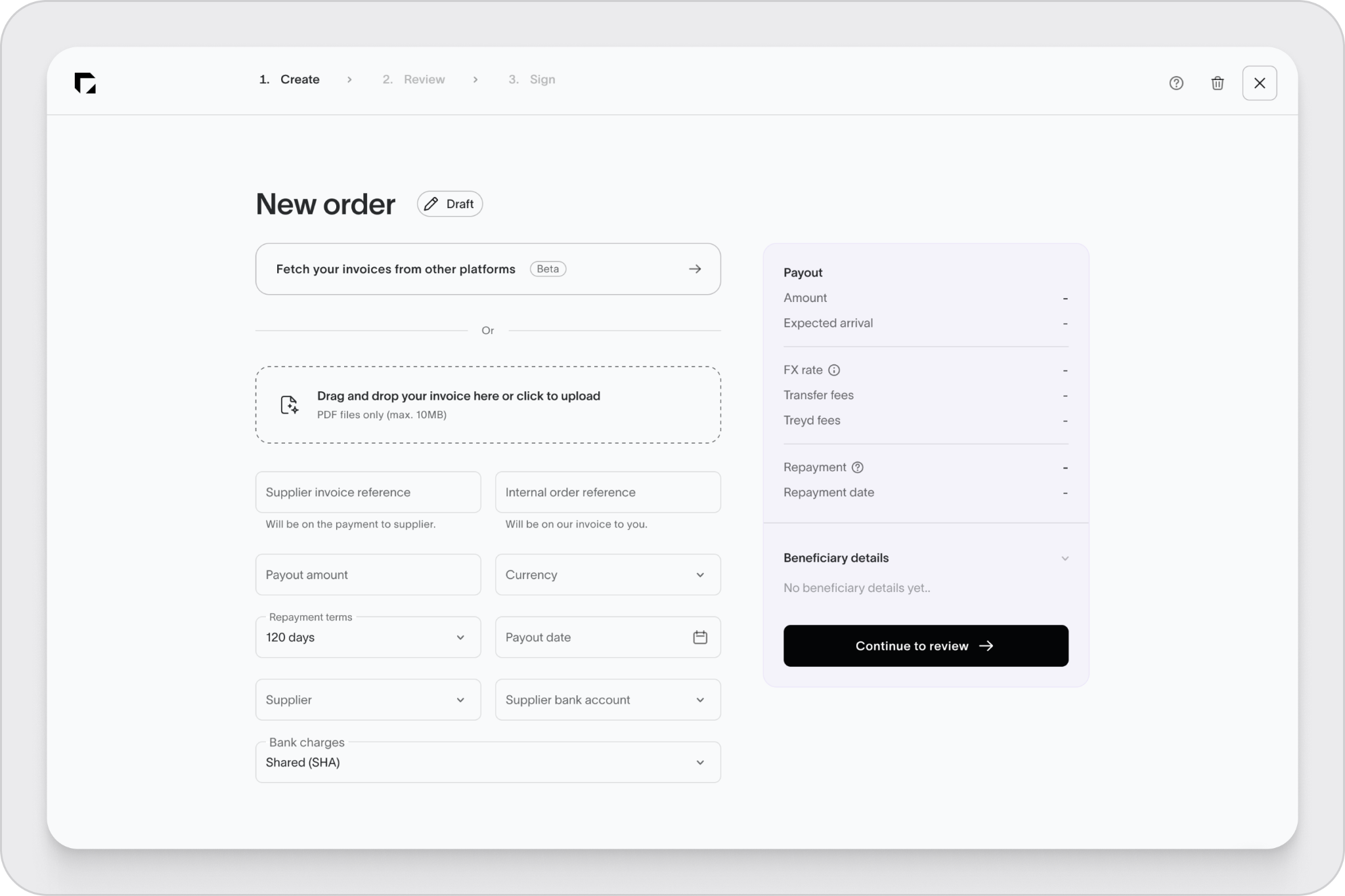
Before you start
You’ll go through these sections when creating an order:
- Supplier invoice
- Treyd payout
- Repayment terms
- Supplier
- Quality inspection (if required)
1. Supplier invoice
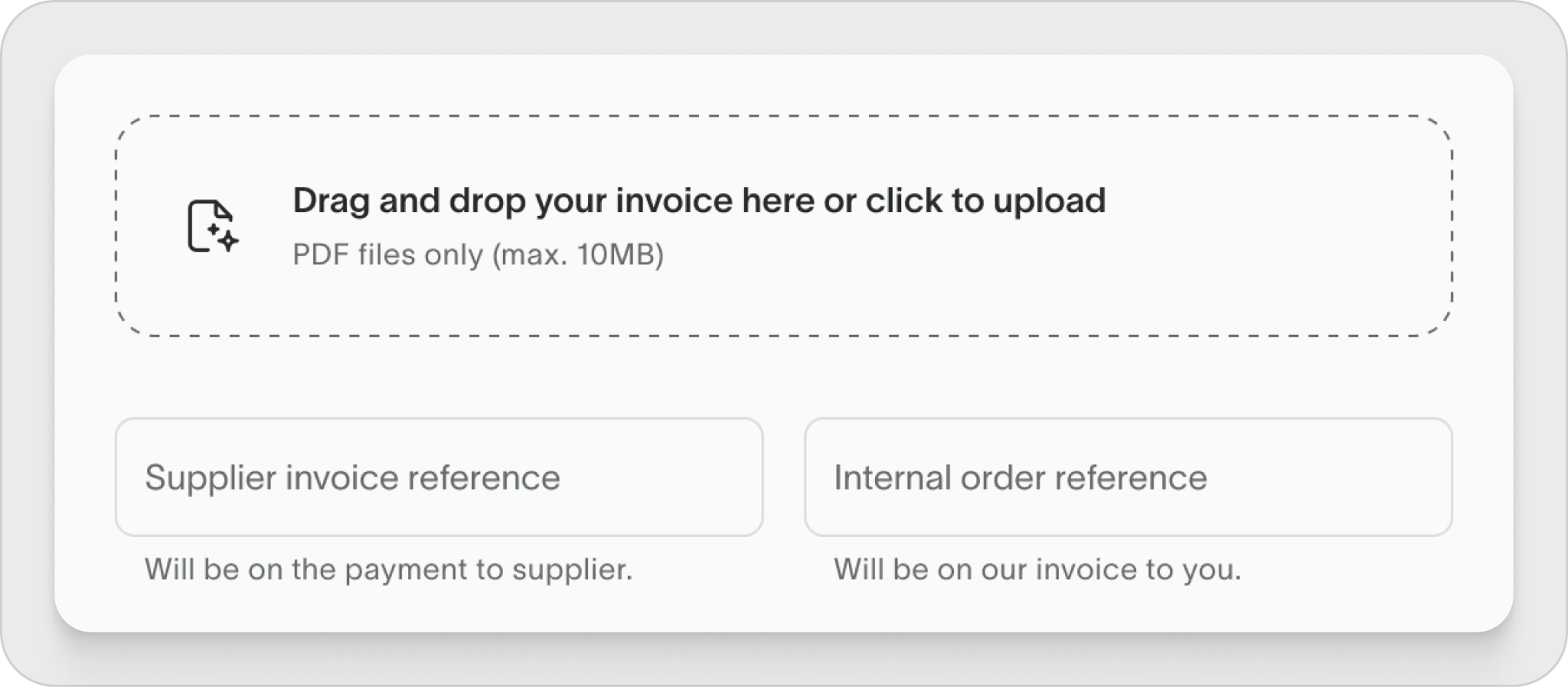
Upload the supplier invoice you want Treyd to finance.
Next our AI feature will help you fill in the reference details, but double check that it matches your invoice.
Tip:
Use the invoice number as your Supplier invoice reference. This will appear on the payment to your supplier and makes it easier to match.
Upload multiple invoices
You can now upload multiple invoices when creating an order. This makes it easier to handle orders that include several invoices from the same supplier.
How it works
In the Supplier invoice step:
- Upload up to 4 invoice files per order
- You can combine:
- An invoice from your accounting system
- Manually uploaded invoice files
We’ll automatically:
- Combine the data across all invoices (e.g. total amount)
- Check that key details match across files, such as:
- Supplier
- Currency
- Dates
Good to know
- All invoices must belong to the same supplier
- Currency must be consistent across all files
- You no longer need to merge PDFs before uploading
2. Payout
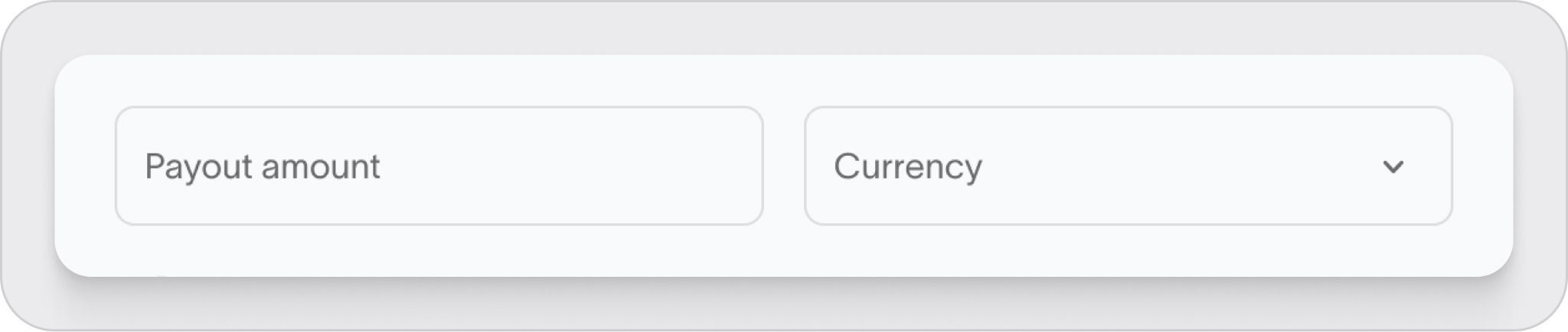
Choose how much you want Treyd to pay.
- You can select the full amount or a partial payout (Our AI feature will automatically suggest the full amount).
- The currency must match the supplier invoice
Reminder:
We can’t process payouts if the currency doesn’t match the invoice.
3. Repayment terms
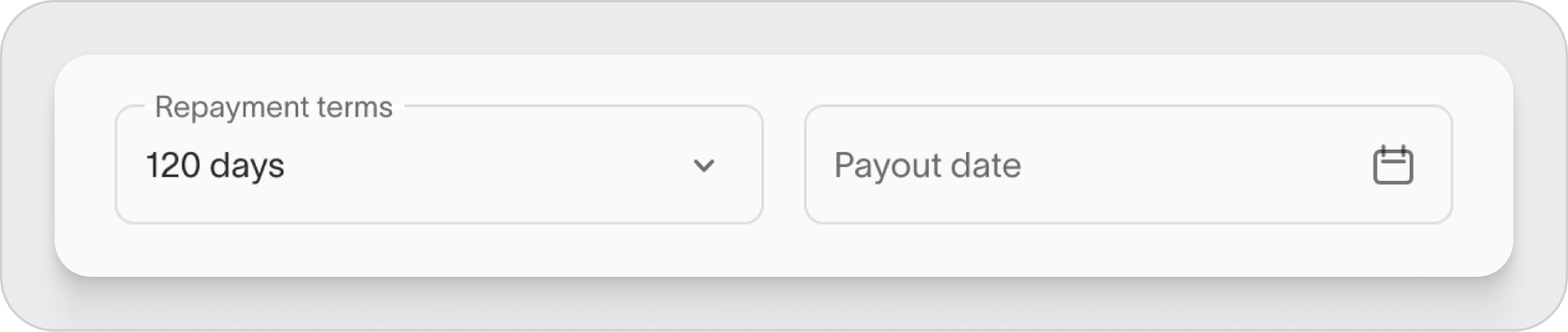
Select your repayment period:
- 30, 60, 90, 120, or 150 days. You can select from 30 - 150 days depending on what works best for your business and the credit terms you’ve been offered.
- You’ll also choose the date we should send the payment to your supplier.
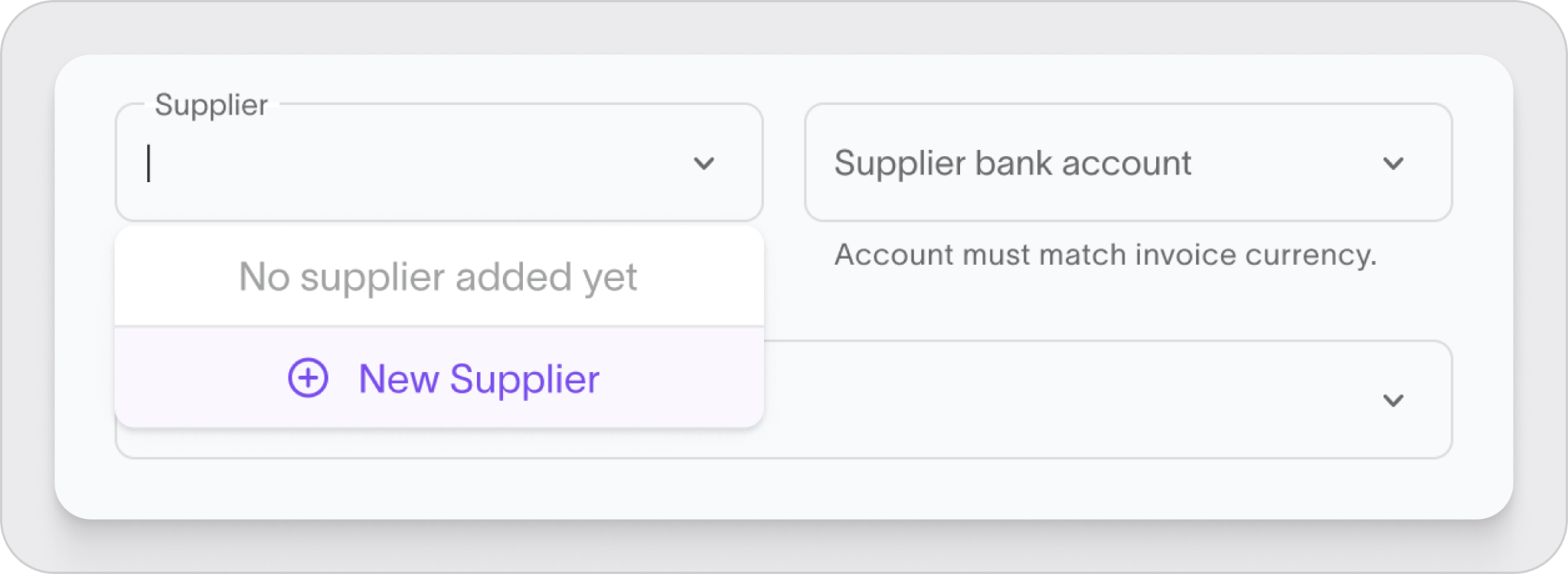
4. Supplier
Select the supplier you want us to pay.
- Choose an existing supplier from the list
- Or add a new one in the Suppliers section
Then select the correct bank account.
Important:
The bank account currency must match the payout currency.
5. Quality inspection (if required)
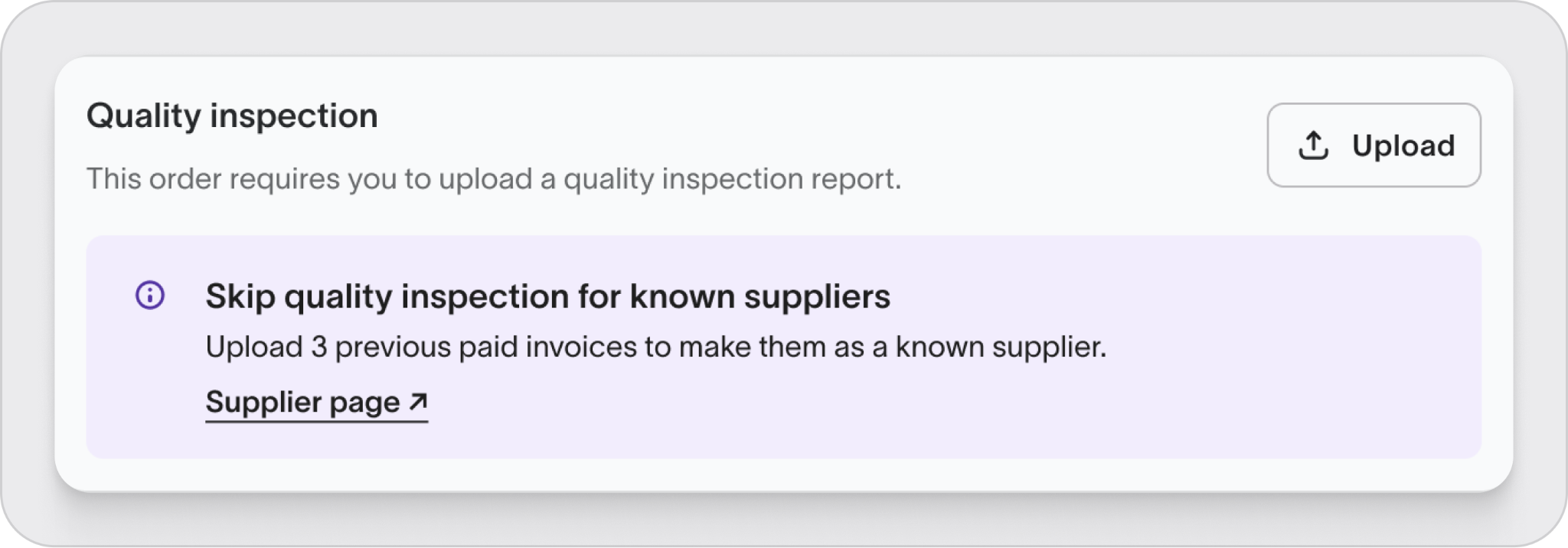
In some cases, a quality inspection is required before you can proceed.
- Upload a quality inspection report to continue
- You’ll need to book the inspection with a provider
You can use any provider, but we recommend Sofeast.
Tip:
If you’ve already worked with this supplier, you can skip the inspection by uploading 3 previously paid invoices.
Review and sign
Before submitting, review all details carefully.
- If you have signing rights, you can sign directly
- Otherwise, request a signature from another user
Make sure to add at least one invoicing email so we know where to send documents.

What happens next
Once submitted:
- Your order is reviewed by our team
- The payment is processed once approved
If you want to know what the different statuses your order can be in before actually being paid out, here you'll find a guide for that.
Summary
Creating an order involves uploading your invoice, selecting payout and repayment terms, and confirming supplier details. Once submitted, we review and process the payment.

